OpenAI Codex Computer Use: Complete Step-by-Step Tutorial
Prerequisites
Before starting, ensure you have:
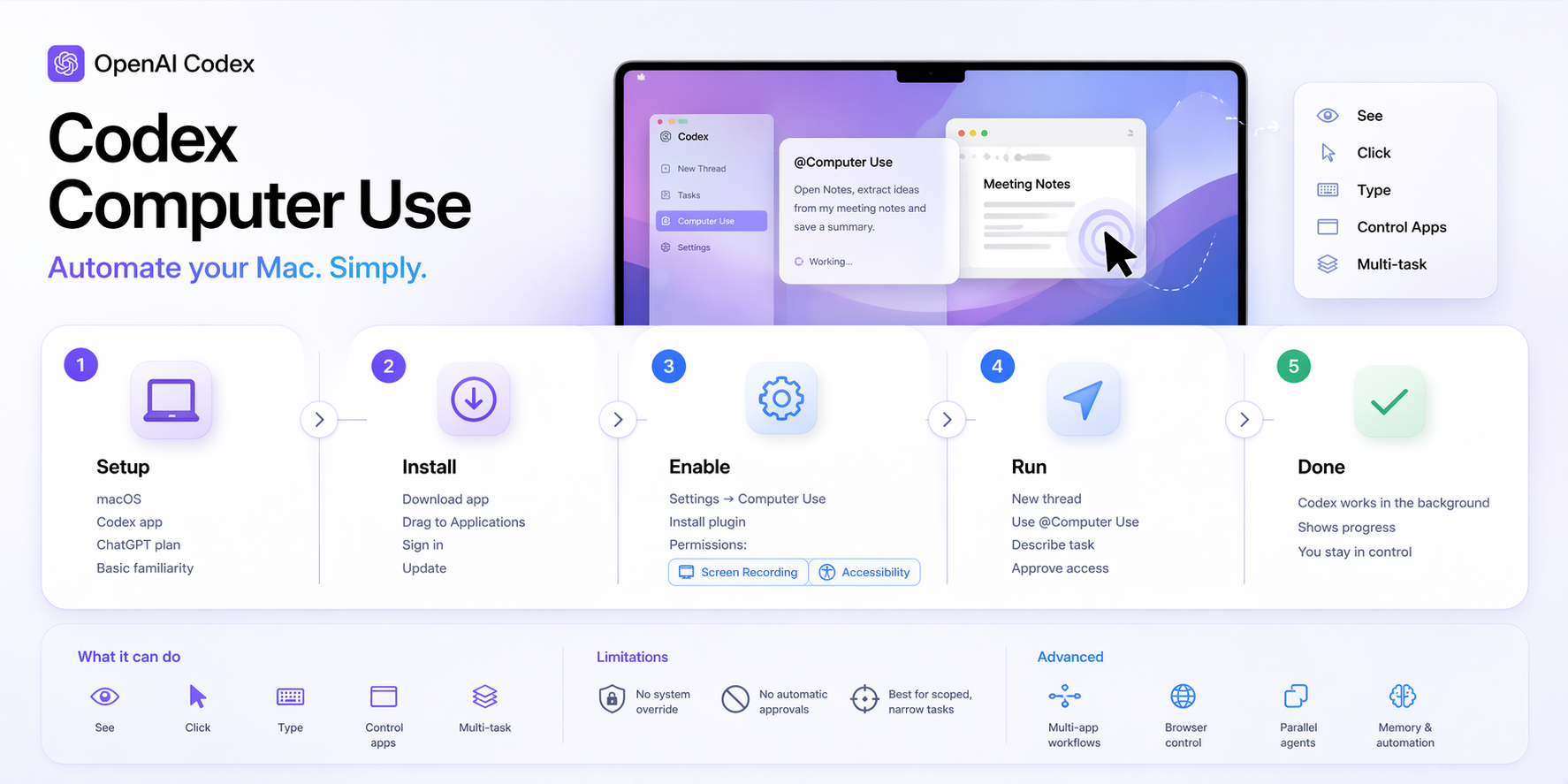
- macOS (Computer Use is currently macOS-only)
- Codex app installed and updated (download from OpenAI if needed)
- ChatGPT Plus, Pro, Business, Enterprise, or Edu subscription
- Basic familiarity with the Codex app interface
Note: Feature availability excludes EEA, UK, and Switzerland at launch.
Step 1: Install the Codex App
- Visit the official OpenAI Codex page and download the latest macOS app.
- Open the downloaded
.dmgfile and drag Codex to your Applications folder. - Launch the app and sign in with your ChatGPT account.
- Verify the app is updated to support the latest features (background computer use, plugins).
Step 2: Install and Configure the Computer Use Plugin
- In the Codex app, go to Settings (usually via the gear icon or sidebar).
- Navigate to the Computer Use section.
- Click Install for the Computer Use plugin.
- Follow on-screen prompts.
macOS will request permissions:
- Screen Recording: Allows Codex to view screen content and take screenshots.
- Accessibility: Allows Codex to click, type, navigate menus, and interact with UI elements.
Grant these in System Settings > Privacy & Security when prompted. Restart Codex if needed.
Step 3: Understand Computer Use Basics
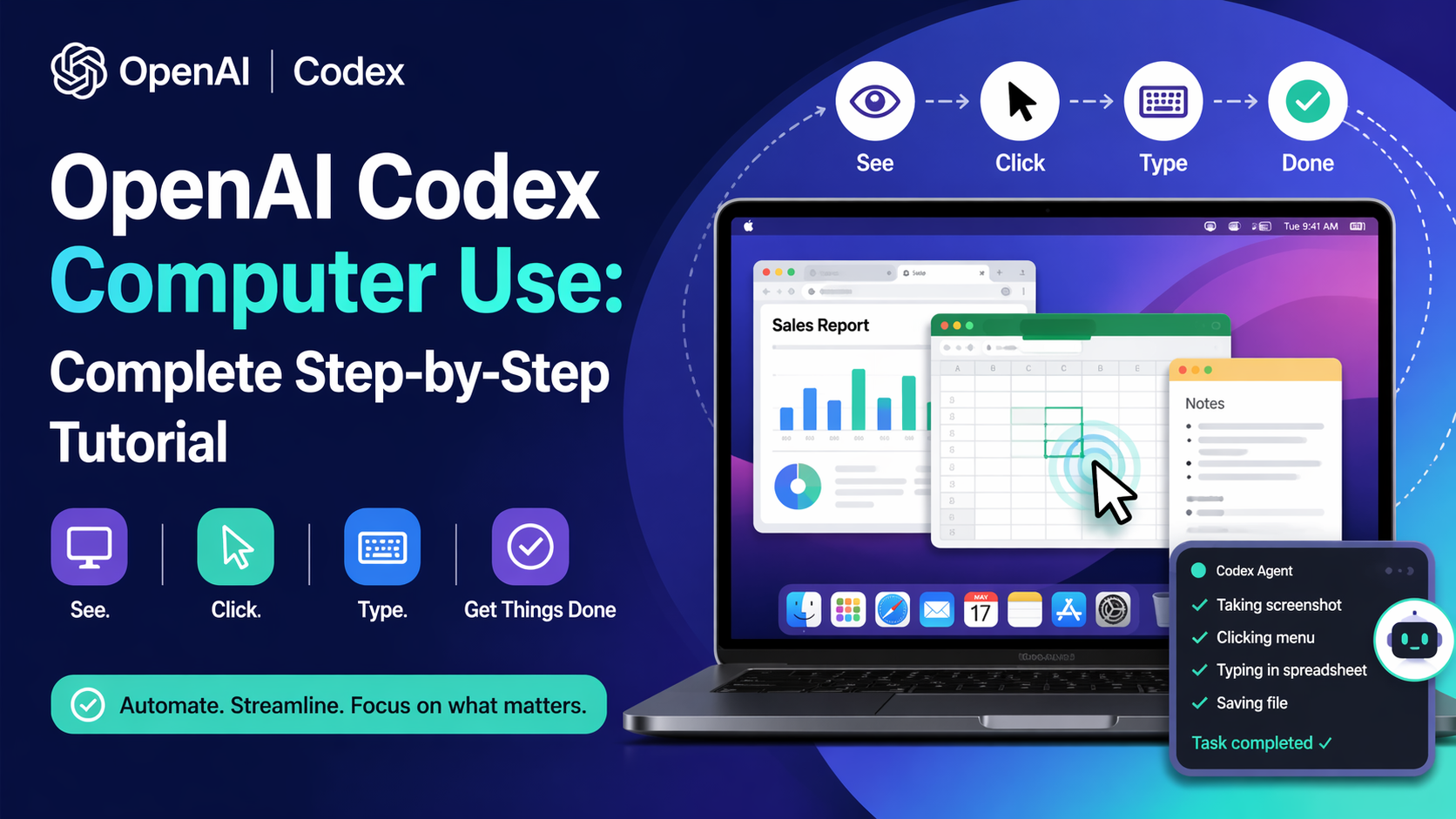
Computer Use lets Codex:
- See your screen via screenshots
- Control the mouse (click, move, scroll)
- Type on keyboard
- Interact with any macOS app's GUI
- Work in the background with its own cursor (doesn't interfere with your work)
- Run multiple agents in parallel
It excels for tasks involving desktop apps without APIs/plugins, browser sessions, or multi-app workflows.
Key limitations:
- Cannot automate Codex itself or Terminal in ways that bypass security
- Cannot approve system security prompts
- Best for scoped, narrow tasks
Step 4: Start Your First Computer Use Task
- Open a new thread in the Codex app.
- Prefix your prompt with
@Computer Useor mention a specific app (e.g.,@Chrome,@Notes). - Describe the task clearly, including desired outcome.
Example prompts:
@Computer Use Play some focus music in Spotify and minimize the window.
@Computer Use Open @Messages, find the thread from Brooke about Yosemite, extract the best trip ideas, add them to a new note in Notes called "Yosemite ideas", then draft a reply.
@Computer Use Open Chrome, go to my local dev server, verify the checkout flow still works after changes.
- Approve any app access prompts (choose Always allow for trusted apps).
- Let Codex work in the background while you continue other tasks.
Codex will show progress, screenshots of actions, and ask for clarification if needed.
Step 5: Advanced Usage and Best Practices
Multi-App Workflows
Use natural language for complex flows:
@Computer Use Take interview notes from Notes app, add key points to Ashby tracker, update Slack status, and draft an email summary.
Browser Control
Specify the browser to avoid interfering with your session:
@Computer Use Use Chrome (not Safari) to test the new frontend at localhost:3000.
Background Parallel Agents
Run multiple independent tasks simultaneously without conflict.
Customization & Memory
- Set defaults in customization (e.g., preferred browser).
- Use memory features for recurring tasks.
- Convert successful workflows into automations.
Safety Tips
- Keep tasks narrow and scoped.
- Stay present for sensitive actions (payments, credentials).
- Review permissions carefully.
- Close sensitive apps not needed for the task.
Common Issues & Troubleshooting
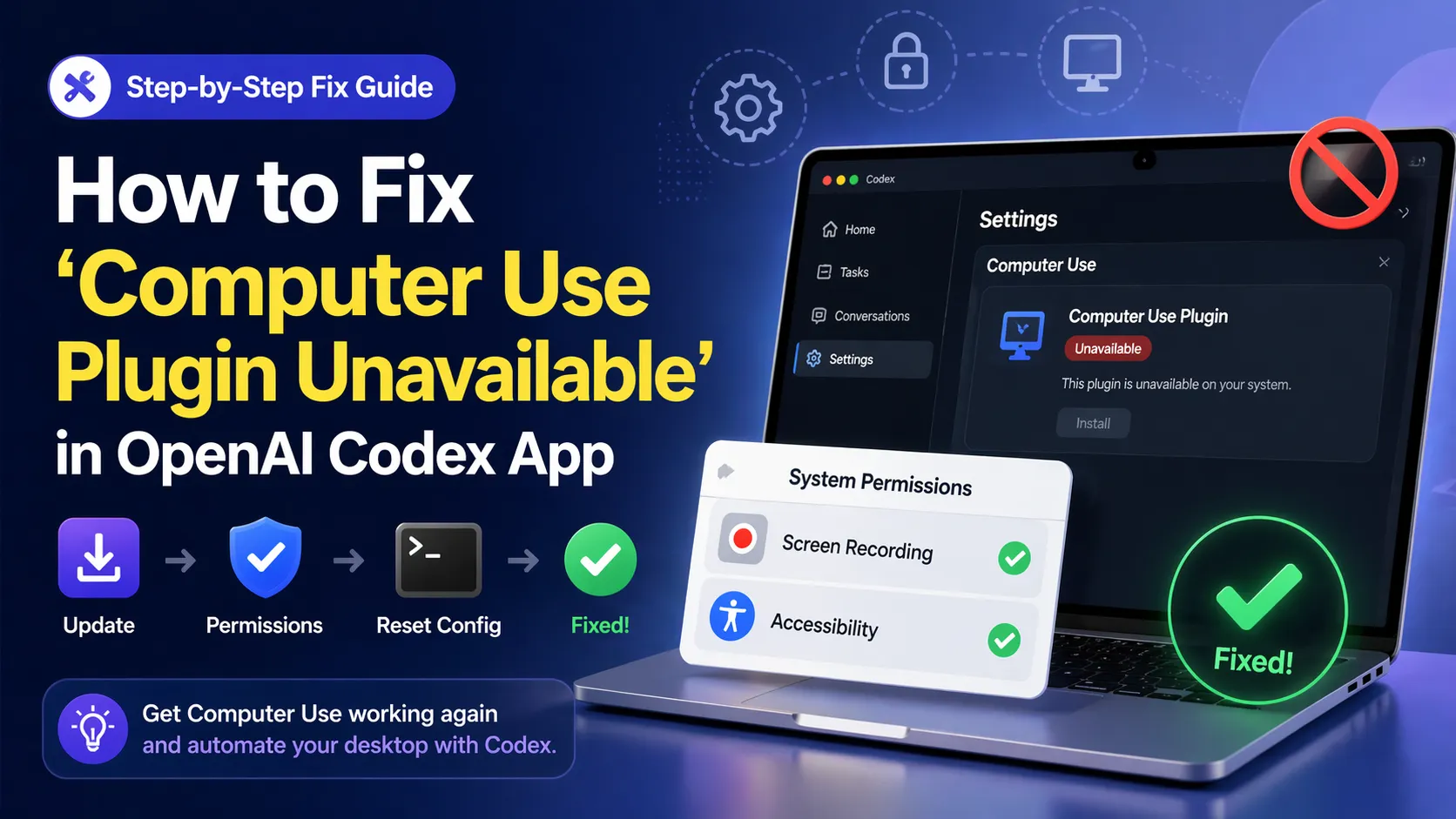
- No screen visibility: Re-check Screen Recording permission in System Settings for Codex.
- Cannot click/type: Verify Accessibility permission; restart Codex and macOS if stuck.
- App not responding: Avoid running multiple Computer Use tasks on the same app simultaneously.
- Mac locks/sleeps: Activity stops; keep machine awake.
- Permission prompts loop: Use Always allow for trusted apps in Codex Computer Use settings.
- Slow performance: Use for GUI-only tasks; prefer plugins/CLI for structured work.
- Feature unavailable: Confirm subscription level and region eligibility.
For persistent issues, check Codex Troubleshooting section or restart the app.
Next Steps
- Experiment with multi-step workflows across your daily apps.
- Combine Computer Use with Codex plugins, in-app browser, and automations.
- Turn successful tasks into reusable automations or skills.
- Explore image generation and memory features for enhanced productivity.
- Monitor OpenAI updates for Windows/Linux support and API expansions.
Practice with simple tasks first to build intuition for effective prompting.
Continue Reading
More articles connected to the same themes, protocols, and tools.
Referenced Tools
Browse entries that are adjacent to the topics covered in this article.

Hyper3D MCP
MCP ServersHyper3D MCP is Hyper3D's hosted Rodin MCP server for creating 3D assets from natural-language instructions or supported references, checking asynchronous generation progress, and retrieving model download links inside AI coding clients. Official setup is documented for Codex, Claude Code, and Kimi Code CLI.

PaidSync.ai
MCP ServersPaidSync.ai is a hosted MCP server for paid advertising that exposes 610+ tools across 14 advertising, analytics, tagging, and commerce platforms. It supports read/write workflows from AI clients including ChatGPT, Claude, Gemini, Cursor, Claude Code, and Codex, with a free plan.