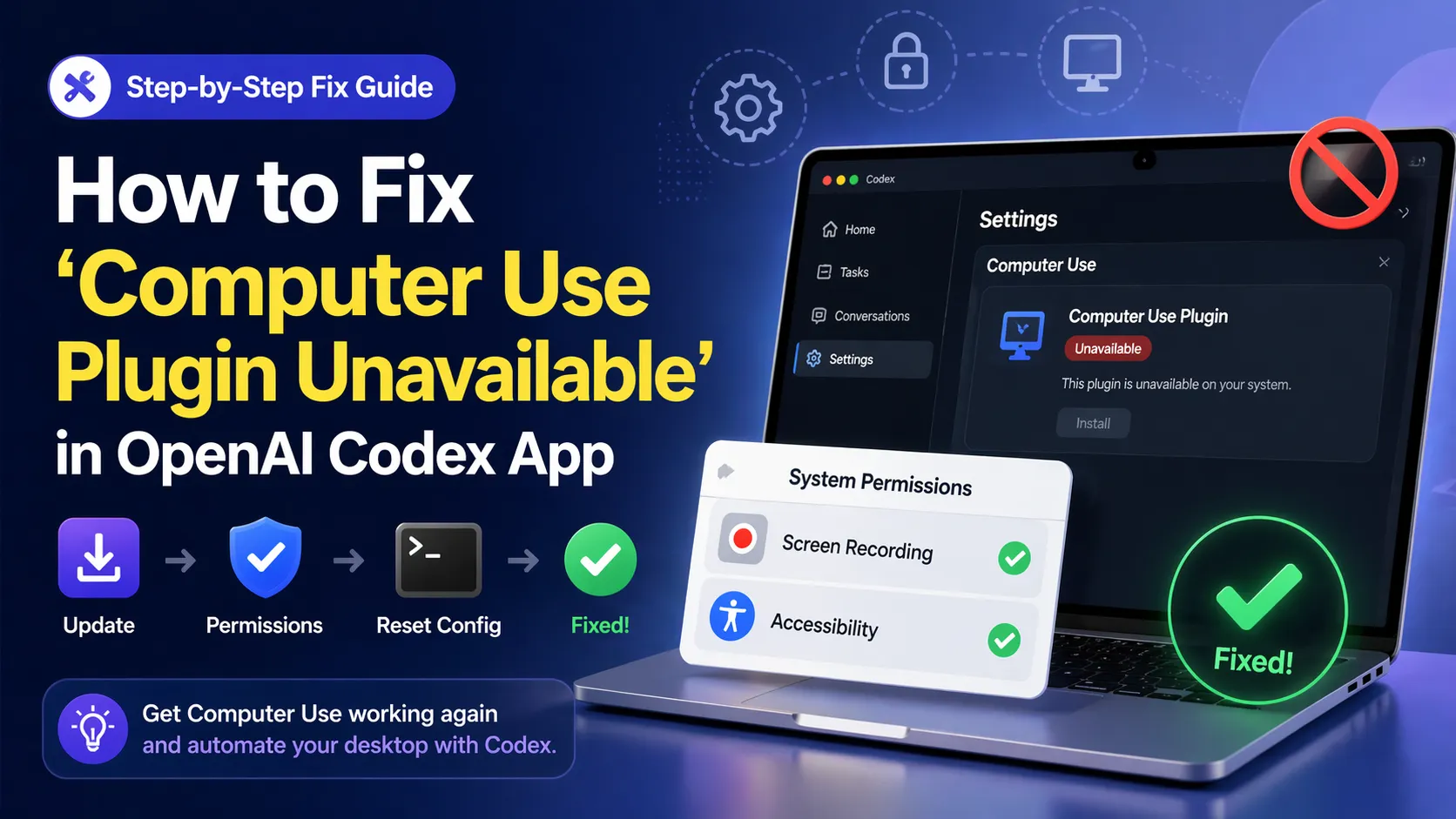
How to Fix 'Computer Use Plugin Unavailable' in OpenAI Codex App
Prerequisites
Before starting, ensure you have:
- macOS (Sequoia or Sonoma recommended; Intel or Apple Silicon).
- The latest Codex desktop app installed and running (download from the official OpenAI site if needed).
- Logged in with your ChatGPT account in Codex.
- Administrative access to your Mac (for permissions and file copies).
- No VPN or region blockers if you're in EEA/UK/Switzerland (Computer Use is restricted at launch in those areas).
Note: This feature is macOS-only. Windows/Linux support is not yet available.
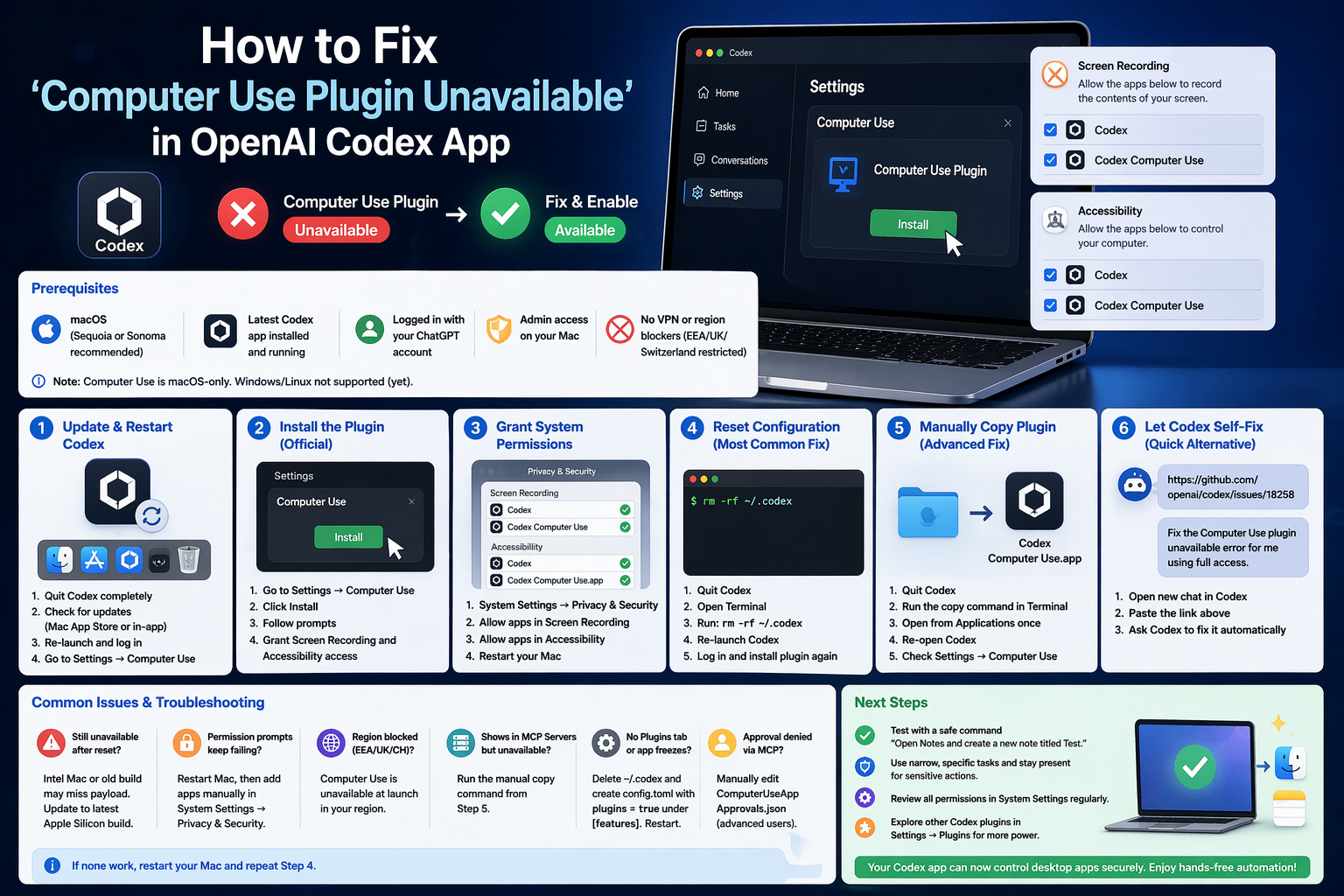
Step 1: Update Codex and Restart the App
- Quit the Codex app completely (right-click the icon in Dock → Quit, or use
Cmd + Q). - Open the Mac App Store or check for updates inside Codex if available.
- Re-launch Codex and log in again.
- Go to Settings → Computer Use.
If the plugin still shows as unavailable, proceed to the next steps.
Step 2: Try the Official Installation
- In Codex, navigate to Settings → Computer Use.
- Click the Install button for the Computer Use plugin.
- Follow any on-screen prompts.
- When macOS shows permission dialogs, grant Screen Recording and Accessibility access to both
CodexandCodex Computer Use.
Test by asking Codex to perform a simple desktop action (e.g., "Open Safari and search for test").
Step 3: Manually Grant System Permissions
- Open System Settings → Privacy & Security.
- Scroll to Screen Recording and ensure both
CodexandCodex Computer Useare checked. - Scroll to Accessibility and do the same.
- If the apps are not listed, restart Codex first, then re-check Settings → Computer Use to trigger the prompts.
- Restart your Mac after changing permissions.
Step 4: Reset Codex Configuration (Most Common Fix)
This clears corrupted local files without losing your account data.
- Quit Codex completely.
- Open Terminal (search Spotlight with
Cmd + Space). - Run this command to delete the config folder:
rm -rf ~/.codex
- Re-launch the Codex app.
- Log in again.
- Go back to Settings → Computer Use and attempt to install the plugin.
Expected output: The plugin should now appear as available.
Step 5: Manually Copy the Bundled Plugin (Advanced Fix)
If the plugin files exist but aren't registering:
- Quit Codex.
- Open Terminal and run this exact command:
cp -r /Applications/Codex.app/Contents/Resources/plugins/openai-bundled/plugins/computer-use/Codex\ Computer\ Use.app /Applications/
- Open Finder → Applications and double-click
Codex Computer Use.apponce to register it. - Re-open Codex.
- Check Settings → Computer Use.
The plugin should now show as installed.
Step 6: Let Codex Self-Fix (Quick Alternative)
- Open a new chat in Codex.
- Paste this exact text:
https://github.com/openai/codex/issues/18258
- Tell Codex: "Fix the Computer Use plugin unavailable error for me using full access."
Codex will often detect the issue and apply the fix automatically.
Common Issues & Troubleshooting
- Still unavailable after reset? Check if you're on an Intel Mac – some older bundles miss the plugin payload. Update to the latest Apple Silicon build if possible.
- Permission prompts keep failing? Restart your Mac, then manually add the apps in System Settings → Privacy & Security.
- Region blocked (EEA/UK/Switzerland)? Computer Use is unavailable at launch. Ask Codex to confirm your location or wait for broader rollout.
- Plugin shows in MCP Servers but unavailable? Run the manual copy command from Step 5.
- App freezes or no Plugins tab? Delete
~/.codex, addplugins = trueunder[features]in a new~/.codex/config.tomlfile, then restart. - Approval denied via MCP? Edit
~/Library/Group Containers/2DC432GLL2.com.openai.sky.CUAService/Library/Application Support/Software/ComputerUseAppApprovals.jsonand add the target app's bundle ID manually (advanced users only).
If none work, restart your Mac and repeat Step 4.
Next Steps
Once fixed:
- Test with a safe command: "Open Notes and create a new note titled Test."
- Use narrow, specific tasks and stay present for sensitive actions.
- Review all permissions in System Settings regularly.
- Explore other Codex plugins in Settings → Plugins for enhanced workflows.
Your Codex app can now control desktop apps securely. Enjoy hands-free automation!
Continue Reading
More articles connected to the same themes, protocols, and tools.

Referenced Tools
Browse entries that are adjacent to the topics covered in this article.

Hyper3D MCP
MCP ServersHyper3D MCP is Hyper3D's hosted Rodin MCP server for creating 3D assets from natural-language instructions or supported references, checking asynchronous generation progress, and retrieving model download links inside AI coding clients. Official setup is documented for Codex, Claude Code, and Kimi Code CLI.

PaidSync.ai
MCP ServersPaidSync.ai is a hosted MCP server for paid advertising that exposes 610+ tools across 14 advertising, analytics, tagging, and commerce platforms. It supports read/write workflows from AI clients including ChatGPT, Claude, Gemini, Cursor, Claude Code, and Codex, with a free plan.