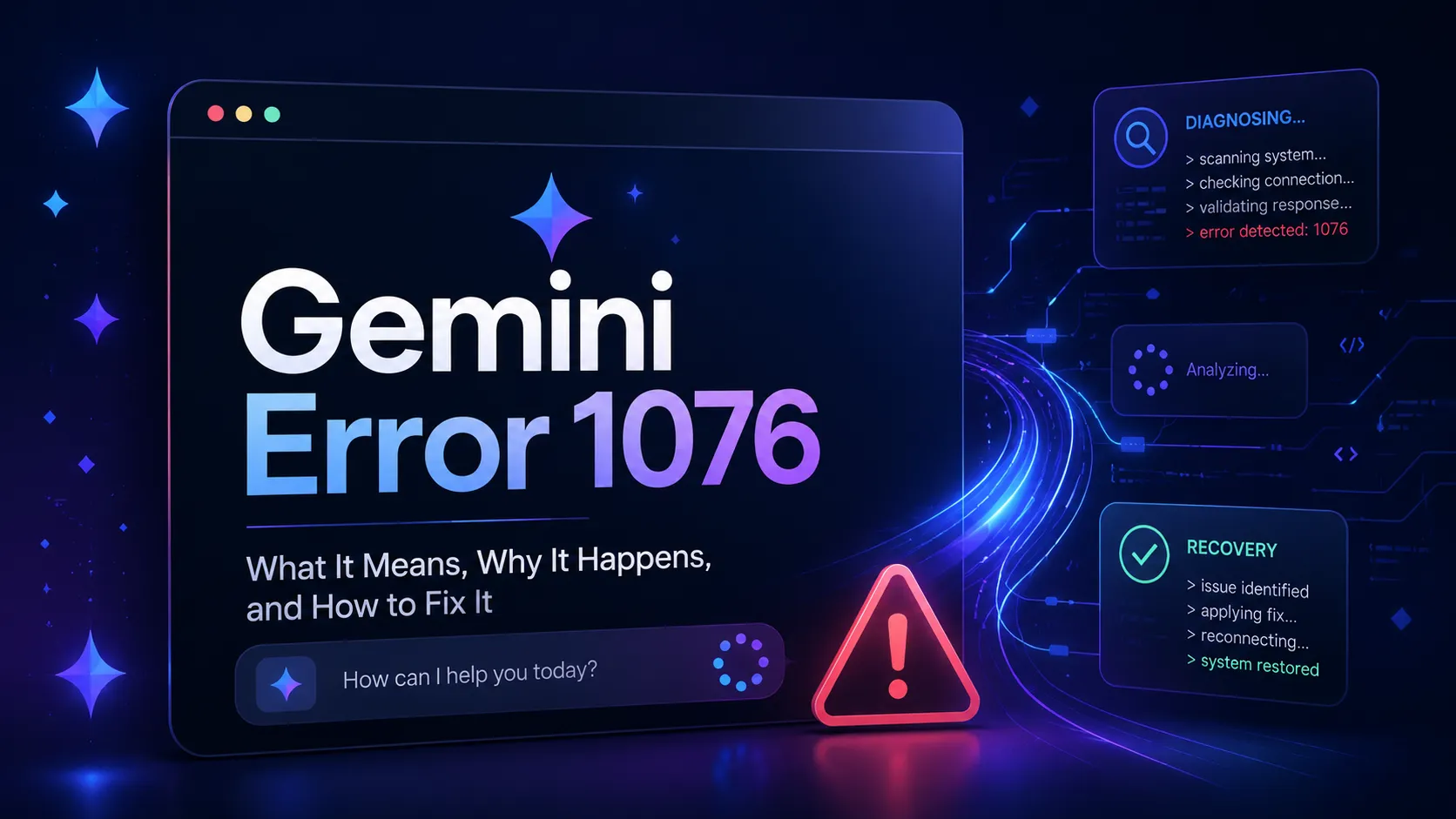
Gemini Error 1076: What It Means, Why It Happens, and How to Fix It Fast
Key Takeaways
- Gemini error 1076 is usually not a user mistake. In the major June 10, 2026 Gemini incident, Google listed error codes 1076 and 1099 as symptoms of a service-side disruption affecting prompt submission across web, macOS, iOS, Android, and Gemini in Chrome. (Google)
- The most reliable first step is status verification, not reinstalling the app. Google’s incident report said there was no workaround during the outage window, which means local fixes could not fully resolve the problem while the backend was unhealthy. (Google)
- A persistent 1076 after a resolved outage can still be local, account-specific, or conversation-specific. Community reports after the outage described cases where one Google account or one conversation behaved differently from another, so isolation testing matters. (Google AI Developers Forum)
- The best fix path is diagnostic: check service status, test a fresh chat, switch devices, compare another account, clear session data, then contact Google support with evidence if the error remains.
- For developers, do not treat 1076 as a normal API status code. Production apps should handle Gemini failures with retries, backoff, fallback models, and user-facing incident messaging instead of assuming every failure is caused by quota or prompt content.
What Is Gemini Error 1076?
Gemini error 1076 is an error code users may see in Google Gemini when submitting a prompt. It often appears with a generic message such as “Something went wrong”, sometimes alongside error 1099.
The important distinction is this: 1076 is not a standard HTTP status code and Google has not published a public, permanent meaning for it as a user-facing diagnostic code. In the best-documented case, Google’s Workspace Status Dashboard treated 1076 as a symptom of a Gemini service disruption, not as a user-side configuration error. (Google)
During the June 10, 2026 incident, Google’s preliminary report said Gemini availability was affected across surfaces including web, mobile, and Chrome integrations. The report described an elevated error rate lasting 7 hours and 5 minutes, with users seeing prompt failures during the impact window. (Google)
That makes the practical meaning of error 1076 straightforward:
Gemini received the request path badly enough that the prompt could not complete, but the visible app message does not expose the exact internal failure to the user.
For users, the goal is not to decode the internal number. The goal is to quickly determine whether the problem is global, account-specific, conversation-specific, device-specific, or network-specific.
Why Gemini Error 1076 Happens
Gemini error 1076 can come from several layers. The same visible code may appear even when the root cause is different.
1. Google-side Gemini outage
This is the first possibility to check.
Google’s June 2026 incident report said the outage was caused by extreme read contention in a foundational database service that managed tool deployment metadata. Google also noted that cache behavior and indexing design concentrated load on a small set of database instances, which pushed success rates down on affected partitions. (Google)
In plain English: Gemini was not simply “down” in a generic way. A backend metadata path became overloaded. When that path failed, Gemini could not reliably retrieve the tool and deployment information required to process prompts.
Signals that point to a Google-side outage:
- Error 1076 appears across multiple devices
- Web and mobile fail at the same time
- Other users report the same code
- A different Wi-Fi or mobile network does not help
- The Workspace Status Dashboard shows a Gemini incident
- Prompts fail before any meaningful response begins
2. A stuck or corrupted conversation
Some users report 1076 only in a specific long-running Gemini chat. This is plausible because long conversations can accumulate:
- Large context history
- Uploaded files or generated artifacts
- Tool calls
- Image or document references
- Safety and memory state
- Model-routing metadata
If a single thread fails but new chats work, the issue is probably conversation-state related, not a complete Gemini outage.
Recommended fix:
- Open the failing chat.
- Copy the last useful answer and the current task.
- Start a new Gemini chat.
- Paste a short summary instead of the entire old thread.
- Rebuild context gradually.
For long research or writing sessions, this is often faster than trying to revive the broken thread.
3. Account-specific backend state
The Google AI Developers Forum included post-outage reports where one account behaved differently from another, even with similar prompts. One user described a Google AI Pro account behaving differently from a free account after the global outage, then later reported that the issue had resolved. (Google AI Developers Forum)
That pattern suggests a useful test:
- If Account A fails and Account B works on the same browser, device, and network, the problem is likely tied to account state, subscription routing, Workspace policy, or backend recovery.
- If both accounts fail, the problem is more likely service-wide, network-related, or browser-related.
4. Browser session or app cache problems
Browser and app storage can contribute to repeated Gemini failures, especially after an outage or model rollout. Gemini uses account sessions, cookies, local storage, and app state to route requests. If stale state conflicts with the current backend, the interface may keep producing the same error.
Common symptoms:
- Gemini works in incognito/private browsing but not in the normal browser
- Gemini works in another browser
- The mobile app fails, but web works
- The error appears immediately after login or after switching accounts
5. Network, VPN, DNS, or firewall interference
A network issue is less likely when many users report the same error at the same time, but it still matters for isolated cases.
Possible causes include:
- Corporate firewall blocking Gemini endpoints
- VPN exit node triggering abnormal routing
- DNS resolver issues
- Browser extensions injecting scripts
- Ad blockers or privacy tools breaking authentication flows
- Region-specific network instability
For Workspace, school, or enterprise users, policy restrictions can look like technical errors. Admin-controlled access, data protection settings, or app availability rules may affect Gemini surfaces differently.
Fast Fix Checklist
Use this order. It avoids wasting time on local fixes during a server-side outage.
- Check Google’s status first. Search for the Gemini entry on the Google Workspace Status Dashboard. If an incident is active, local troubleshooting has limited value.
- Retry once or twice, not endlessly. Repeated manual retries can work after transient failures, but endless resubmission wastes time and may duplicate work.
- Start a new chat. If the new chat works, the old thread is the problem.
- Switch surface. Test Gemini on web, mobile app, and Chrome integration if available.
- Use incognito/private mode. If that works, clear cookies and site data for Gemini in the normal browser.
- Disable extensions. Focus on ad blockers, script blockers, privacy extensions, VPN browser extensions, and automation tools.
- Switch networks. Compare Wi-Fi, mobile data, and a no-VPN connection.
- Compare accounts. Test another personal or Workspace account if available.
- Export or copy important content. Preserve useful output from the failing thread before deeper troubleshooting.
- Escalate with evidence. If the issue is account-specific or persists after status recovery, submit feedback or contact support with timestamps, platform, account type, and screenshots.
Step-by-Step Troubleshooting Guide
Step 1: Identify the failure scope
Ask one question first: How wide is the failure?
| Test | Result | Likely Cause |
|---|---|---|
| Fails on all devices and accounts | Same 1076 everywhere | Google-side outage or regional service issue |
| Fails only in one old chat | New chats work | Conversation-state problem |
| Fails only in one browser | Other browsers work | Cookies, extension, cache, or browser storage |
| Fails only on work or school account | Personal account works | Workspace policy or account routing |
| Fails only on one network | Mobile data works | DNS, VPN, firewall, or ISP routing |
This table matters because the wrong fix wastes time. Reinstalling the app will not repair a global backend incident. Waiting will not fix a corrupted browser session.
Step 2: Preserve the failed prompt
Before refreshing everything, copy:
- The prompt that triggered 1076
- Any important chat context
- The file names or images attached
- The model or mode selected
- The approximate time and timezone
- Whether the issue happened on web, iOS, Android, macOS, or Chrome
This evidence helps if the issue must be escalated. It also prevents losing work during cache clearing.
Step 3: Test a clean session
A clean session separates account problems from browser-state problems.
Try this:
`text
- Open a private/incognito window.
- Sign in to Gemini.
- Start a new chat.
- Send a simple prompt: "Summarize the concept of caching in 3 bullets."
- If it works, return to the normal browser and clear Gemini site data. `
If private mode works, the likely culprit is browser storage, an extension, or a stale session.
Step 4: Clear Gemini site data
Use this only after copying important content.
For Chrome-based browsers:
text Settings → Privacy and security → Third-party cookies → See all site data and permissions Search for Gemini or Google Clear site data for the affected Gemini surface Restart the browser Sign in again
For mobile apps:
`text
- Force close the Gemini app.
- Update the app.
- Restart the device.
- Sign in again.
- If needed, clear app cache or reinstall. `
On iOS, reinstalling is often the cleanest way to clear app state. On Android, clearing cache and storage can be tested before reinstalling.
Step 5: Rebuild a broken long chat
If only one long Gemini conversation returns 1076, avoid pasting the entire old thread into a new chat. That can recreate the same context overload.
Use a compressed restart prompt:
`text Continue this project from a summarized state.
Context:
- Goal: [one sentence]
- Current output style: [brief style rules]
- Important constraints: [bullets]
- Last completed step: [one sentence]
- Next task: [specific request]
Do not rely on earlier hidden context. Ask only if a required detail is missing. `
This reduces context size and removes potentially corrupted thread metadata.
Device-Specific Fixes
Gemini error 1076 on desktop web
Best fixes:
- Refresh once
- Start a new chat
- Try private mode
- Disable extensions
- Clear Gemini site data
- Try another browser
- Test without VPN
- Check Workspace Status Dashboard
Avoid clearing all browser history unless necessary. Targeted Gemini site data is safer and faster.
Gemini error 1076 on Android
Best fixes:
- Update the Gemini app and Google app
- Force stop Gemini
- Clear cache
- Switch between Wi-Fi and mobile data
- Remove VPN temporarily
- Test Gemini in a mobile browser
- Restart the phone
If the mobile browser works but the app fails, the app state is the likely problem.
Gemini error 1076 on iPhone or iPad
Best fixes:
- Update Gemini from the App Store
- Force close and reopen the app
- Restart the device
- Test Gemini in Safari or Chrome
- Disable iCloud Private Relay temporarily for testing
- Reinstall Gemini if web works but the app does not
If both web and app fail, check for a service incident before changing more settings.
Gemini error 1076 in Chrome side panel
Google’s incident report specifically listed Gemini in Chrome among affected surfaces during the June 2026 outage. (Google)
Recommended fixes:
- Update Chrome
- Restart Chrome
- Disable experimental flags related to AI features
- Sign out and back in
- Test Gemini directly on the web
- Check whether Workspace policies control Chrome integration
If the direct Gemini web app works but the Chrome side panel fails, the issue is likely integration-specific.
Workspace and School Account Checklist
For managed accounts, 1076 can be confused with policy or availability issues. Admins and users should verify:
- Gemini is enabled for the organizational unit
- The user has the correct Gemini license or eligible plan
- The account is not blocked by age, region, or data policy restrictions
- Chrome integration is enabled if the issue occurs in Chrome
- Third-party cookie or identity settings are not breaking sign-in
- The same prompt works in a personal account
Google’s June 2026 status update explicitly referenced both consumer and enterprise Google Workspace impact in its preliminary report. (Google)
For organizations, the most useful escalation package includes:
- Impacted platform
- Start time and end time
- Number of affected users
- Whether consumer accounts work
- Whether Gemini web, mobile, and Chrome are affected
- Screenshots of the visible error
- Recent admin changes to Gemini or Chrome settings
Developer Notes: Handling Gemini Failures in Apps
For developers using Gemini through an API or AI Studio workflow, do not hard-code logic around 1076 unless that exact code is returned by the surface being integrated. In many cases, API integrations should be built around documented response classes such as authentication errors, quota errors, rate limits, timeouts, and server failures.
A resilient retry strategy should include:
- Short timeout on the first request
- Exponential backoff
- Jitter to avoid synchronized retries
- Maximum retry count
- Fallback model or degraded mode
- User-facing incident message
- Request logging without storing sensitive prompt data
Example retry pattern:
`js async function callGeminiWithRetry(runRequest, maxRetries = 3) { let lastError;
for (let attempt = 0; attempt <= maxRetries; attempt++) { try { return await runRequest(); } catch (error) { lastError = error;
  const retryable =
    error.status === 429 ||
    error.status === 500 ||
    error.status === 502 ||
    error.status === 503 ||
    error.status === 504 ||
    error.code === "ETIMEDOUT";

  if (!retryable || attempt === maxRetries) {
    throw error;
  }

  const baseDelay = 500 * Math.pow(2, attempt);
  const jitter = Math.floor(Math.random() * 250);
  await new Promise(resolve => setTimeout(resolve, baseDelay + jitter));
}
}
throw lastError; } `
This prevents a temporary Gemini backend issue from turning into a poor user experience.
Common Mistakes That Make Error 1076 Worse
Avoid these traps:
- Deleting an entire chat before copying important content
- Reinstalling repeatedly during a confirmed outage
- Assuming Pro, Ultra, or Workspace accounts are immune
- Sending the same long prompt dozens of times
- Changing VPN regions without testing a no-VPN baseline
- Blaming prompt content before testing a simple prompt
- Ignoring Chrome extensions
- Treating 1076 as a quota error without evidence
The strongest diagnostic pattern is comparison: same prompt, same device, different browser; same browser, different account; same account, different network.
Gemini Error 1076 vs Error 1099
Users often see 1076 and 1099 during the same incident. Google grouped both codes under the same “Something went wrong” symptom in the June 2026 Workspace Status updates. (Google)
Practical difference for users:
- 1076: commonly appears when a prompt fails to submit or complete
- 1099: commonly appears in similar prompt-failure scenarios
- Both together: more likely to indicate backend instability than a local typo or bad prompt
Because Google has not published a stable public mapping for these codes, the best approach is to diagnose by behavior, not by number.
Advanced Recovery for Long Writing, Coding, or Research Chats
Long chats are more likely to become fragile because they carry more state. For serious work, use a “checkpoint” habit.
After every major milestone, create a compact project summary:
`text Project checkpoint:
- Objective:
- Current decision:
- Files or references used:
- Style rules:
- Open questions:
- Next action: `
Then paste that checkpoint into a fresh chat. This creates a cleaner recovery path if the old conversation starts producing 1076.
For coding sessions, also keep:
- Current repository state
- Exact error logs
- Commands already tried
- Expected behavior
- Constraints such as framework, runtime, package manager, and deployment target
For research sessions, keep:
- Source list
- Claim list
- Unverified assumptions
- Final outline
- Remaining gaps
This turns a Gemini error from a project blocker into a recoverable interruption.
When to Wait Instead of Troubleshoot
Waiting is the correct action when:
- Google has confirmed an active Gemini incident
- Multiple platforms fail at once
- Multiple accounts fail
- Social reports spike at the same time
- The same prompt worked recently and no local settings changed
During the June 10, 2026 incident, Google said the issue began at 03:20 US/Pacific and ended at 10:25 US/Pacific, and later marked it resolved for affected users. (Google)
In a confirmed outage, the best move is to save work, avoid repeated submissions, and return after the service stabilizes.
When to Contact Support
Contact support or submit feedback if:
- Error 1076 persists after Google marks the incident resolved
- The issue affects only a paid or Workspace account
- A specific chat is inaccessible and contains important work
- Gemini fails on every browser and network for one account
- Admin settings appear correct but Workspace users remain blocked
- The same prompt works on another account
Include:
text Error code: 1076 Message shown: Something went wrong Platform: Web / Android / iOS / macOS / Chrome Account type: Personal / Pro / Ultra / Workspace First observed: Still happening: Works in new chat: Yes / No Works in private browser: Yes / No Works on another account: Yes / No Works on another network: Yes / No
Specific evidence increases the chance that support can route the issue correctly.
FAQ
Is Gemini error 1076 caused by my prompt?
Usually, no. If a simple prompt also fails, the issue is not the wording. If only one sensitive or complex prompt fails while normal prompts work, then prompt content, file input, or conversation context may be involved.
Does upgrading to Gemini Pro or Ultra fix error 1076?
Not necessarily. The June 2026 incident affected both consumer and Workspace users, and community reports included paid-account cases. A subscription may change model access, but it cannot bypass a backend outage. (Google)
Should the Gemini app be reinstalled?
Only after faster tests. First check service status, try a new chat, test web, and clear app cache where possible. Reinstalling is useful when the app fails but Gemini works in a browser.
Why does Gemini work in one account but not another?
That points to account-specific routing, subscription state, Workspace policy, or backend recovery. Test the same prompt on the same device and network to isolate the variable.
Why does one Gemini chat fail while others work?
The thread may contain problematic accumulated state: long context, attachments, tool outputs, or stale metadata. Start a new chat with a compact summary.
Conclusion
Gemini error 1076 is best handled as a diagnostic problem, not a mystery code. The June 2026 outage showed that 1076 can be a visible symptom of deep backend instability, including database contention and cache failure, rather than a user-side mistake. (Google)
The fastest recovery path is:
- Check official service status
- Test a fresh chat
- Compare browser, app, account, and network
- Clear local session data only when evidence points local
- Preserve important work before resetting anything
- Escalate with structured evidence if the issue persists
For users who rely on Gemini for writing, coding, research, or business workflows, the best long-term defense is simple: keep project checkpoints, avoid overloading single conversations, and maintain a fallback workflow when Gemini has an incident.
Continue Reading
More articles connected to the same themes, protocols, and tools.

Referenced Tools
Browse entries that are adjacent to the topics covered in this article.

PaidSync.ai
MCP ServersPaidSync.ai is a hosted MCP server for paid advertising that exposes 610+ tools across 14 advertising, analytics, tagging, and commerce platforms. It supports read/write workflows from AI clients including ChatGPT, Claude, Gemini, Cursor, Claude Code, and Codex, with a free plan.
Hyper3D MCP
MCP ServersHyper3D MCP is Hyper3D's hosted Rodin MCP server for creating 3D assets from natural-language instructions or supported references, checking asynchronous generation progress, and retrieving model download links inside AI coding clients. Official setup is documented for Codex, Claude Code, and Kimi Code CLI.