How to Change Claude Code to Fable 5: Step-by-Step Model Switching Tutorial
Prerequisites
Before you change Claude Code to Claude Fable 5, make sure you have:
- Claude Code installed on macOS, Linux, WSL, or Windows.
- A Claude Code-capable account or API setup.
- Claude Code v2.1.170 or later. Older versions may not show Fable 5 in the model picker.
- Access to Fable 5 in your organization, workspace, or provider account.
- A project folder where you can safely run Claude Code.
Useful terms:
- Model alias: a short model name such as
fable,opus, orsonnet. - Model ID: the exact model name, such as
claude-fable-5. - Session model: the model used only for the current Claude Code session.
- Default model: the model Claude Code uses when you start future sessions.
Step 1: Update Claude Code
Fable 5 support depends on your Claude Code version. Start by updating Claude Code:
bash claude update
Expected result:
text Claude Code updated to the latest version
Then check the installed version:
bash claude --version
Expected result should be v2.1.170 or later:
text 2.1.170
If your version is lower, install or update Claude Code again. On macOS, Linux, or WSL, you can install Claude Code with:
bash curl -fsSL https://claude.ai/install.sh | bash
Restart your terminal after installation if the claude command is not found.
Step 2: Open Claude Code in Your Project
Move into the project where you want Claude Code to work:
bash cd /path/to/your/project claude
On first launch, Claude Code may ask you to sign in. Follow the browser-based login flow.
After launch, you should see an interactive Claude Code session. The prompt usually shows the current working directory and active model information.
You can confirm available commands with:
text /help
Step 3: Check Your Current Model
Inside Claude Code, run:
text /status
Expected output will vary, but it should include account and model information, similar to:
text Model: sonnet Account: Claude Pro Working directory: /path/to/your/project
If you already see fable or claude-fable-5, you are already using Fable 5.
Step 4: Change the Current Session to Fable 5
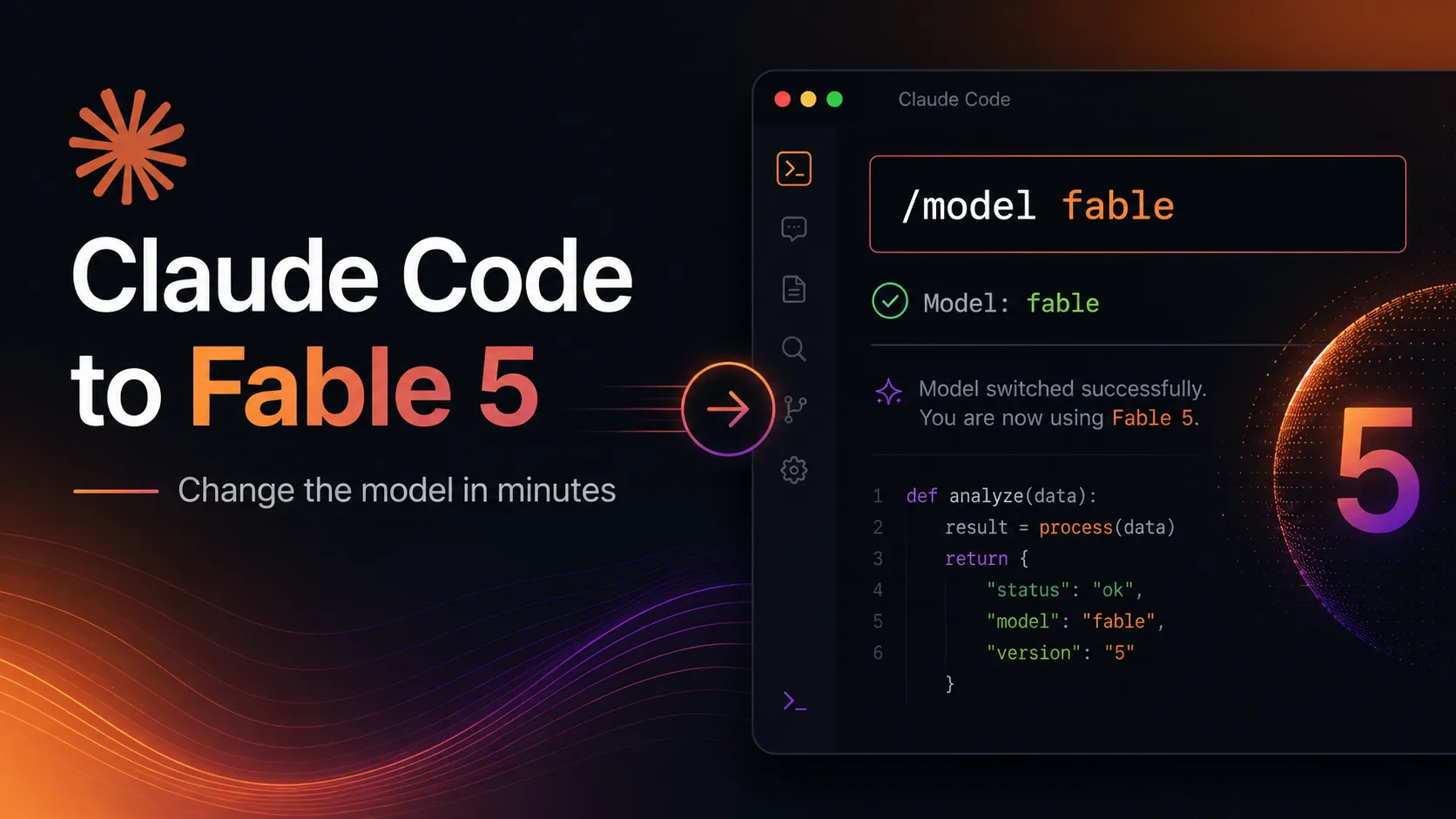
The fastest way to switch is the /model command.
Inside Claude Code, run:
text /model fable
Expected result:
text Switched model to fable
You can verify the change:
text /status
Expected output:
text Model: fable
This is the recommended everyday method because it works immediately without restarting your terminal.
Step 5: Use the Interactive Model Picker
If you prefer not to type the model name directly, open the model picker:
text /model
Then choose Fable 5 from the list.
Depending on your Claude Code version, the picker may let you choose whether the model change applies only to the current session or becomes your default model for future sessions.
Use session-only switching when you want Fable 5 for one large task but still want Sonnet or Opus as your normal default.
Step 6: Start Claude Code with Fable 5 from the Command Line
You can also select Fable 5 when launching Claude Code:
bash claude --model fable
Expected result:
text Starting Claude Code... Model: fable
This is useful when you run multiple terminals and want different sessions to use different models:
`bash
Terminal 1: use Fable 5 for a long refactor
claude --model fable
Terminal 2: use Sonnet for quick edits
claude --model sonnet `
Command-line model selection is practical for temporary usage because it does not require changing your global settings.
Step 7: Set Fable 5 with an Environment Variable
For shell-based workflows, set the ANTHROPIC_MODEL environment variable:
bash export ANTHROPIC_MODEL=fable claude
Expected result:
text Starting Claude Code... Model: fable
To make this persistent in zsh:
bash echo 'export ANTHROPIC_MODEL=fable' >> ~/.zshrc source ~/.zshrc
For bash:
bash echo 'export ANTHROPIC_MODEL=fable' >> ~/.bashrc source ~/.bashrc
Then verify:
bash echo $ANTHROPIC_MODEL
Expected output:
text fable
Use this method when you want every Claude Code session launched from that shell to default to Fable 5.
Step 8: Pin the Exact Fable 5 Model ID
For most users, the alias is enough:
text /model fable
If you need the exact model ID, use:
text /model claude-fable-5
Expected result:
text Switched model to claude-fable-5
Use the exact model ID when:
- You are writing team documentation.
- You are testing provider-specific behavior.
- You want to avoid ambiguity around aliases.
- You are configuring a gateway, Bedrock, Vertex AI, or another deployment layer.
Step 9: Configure Fable 5 in Claude Code Settings
Claude Code can store model preferences in settings files. For a user-level default, edit your user settings file under ~/.claude/.
A minimal settings example:
json { "model": "fable" }
For a project-level setting, use a .claude/ settings file in your repository:
json { "model": "fable" }
A user-level setting is good for your personal workflow. A project-level setting is better when the whole repository should use the same default model.
Be careful with shared project settings. If you commit a .claude/ configuration to the repository, teammates may inherit the same model preference.
Step 10: Use Fable 5 for a Real Coding Task
Fable 5 is best for large, ambiguous, multi-step work. Instead of giving tiny instructions, describe the desired outcome.
Example prompt inside Claude Code:
`text We need to migrate this Express API from JavaScript to TypeScript.
Goal:
- Add TypeScript configuration.
- Convert source files incrementally.
- Preserve runtime behavior.
- Update package scripts.
- Run tests and fix type errors.
- Summarize the changed files and remaining risks.
Before editing, inspect the project structure and propose a short plan. `
A good Fable 5 response should usually:
- Inspect files before editing.
- Produce a plan.
- Ask for permission before risky actions.
- Make changes across multiple files.
- Run relevant checks.
- Summarize the result.
For smaller edits, Sonnet may be faster and cheaper. Fable 5 is most useful when the task benefits from deeper investigation and longer context.
Step 11: Use Fable 5 with Fallback Models
Fable 5 may be unavailable, overloaded, or restricted in some environments. A fallback model chain can keep your workflow moving.
Start Claude Code with fallback models:
bash claude --model fable --fallback-model opus,sonnet
Expected behavior:
text Primary model: fable Fallback models: opus, sonnet
For persistent fallback configuration, add a fallbackModel array to settings:
json { "model": "fable", "fallbackModel": ["opus", "sonnet"] }
This is practical for production-like agent workflows where you want Fable 5 first, but do not want work to stop if the model is temporarily unavailable.
Step 12: Configure Provider-Specific Fable 5 Deployments
If you use Anthropic directly, fable or claude-fable-5 is usually enough.
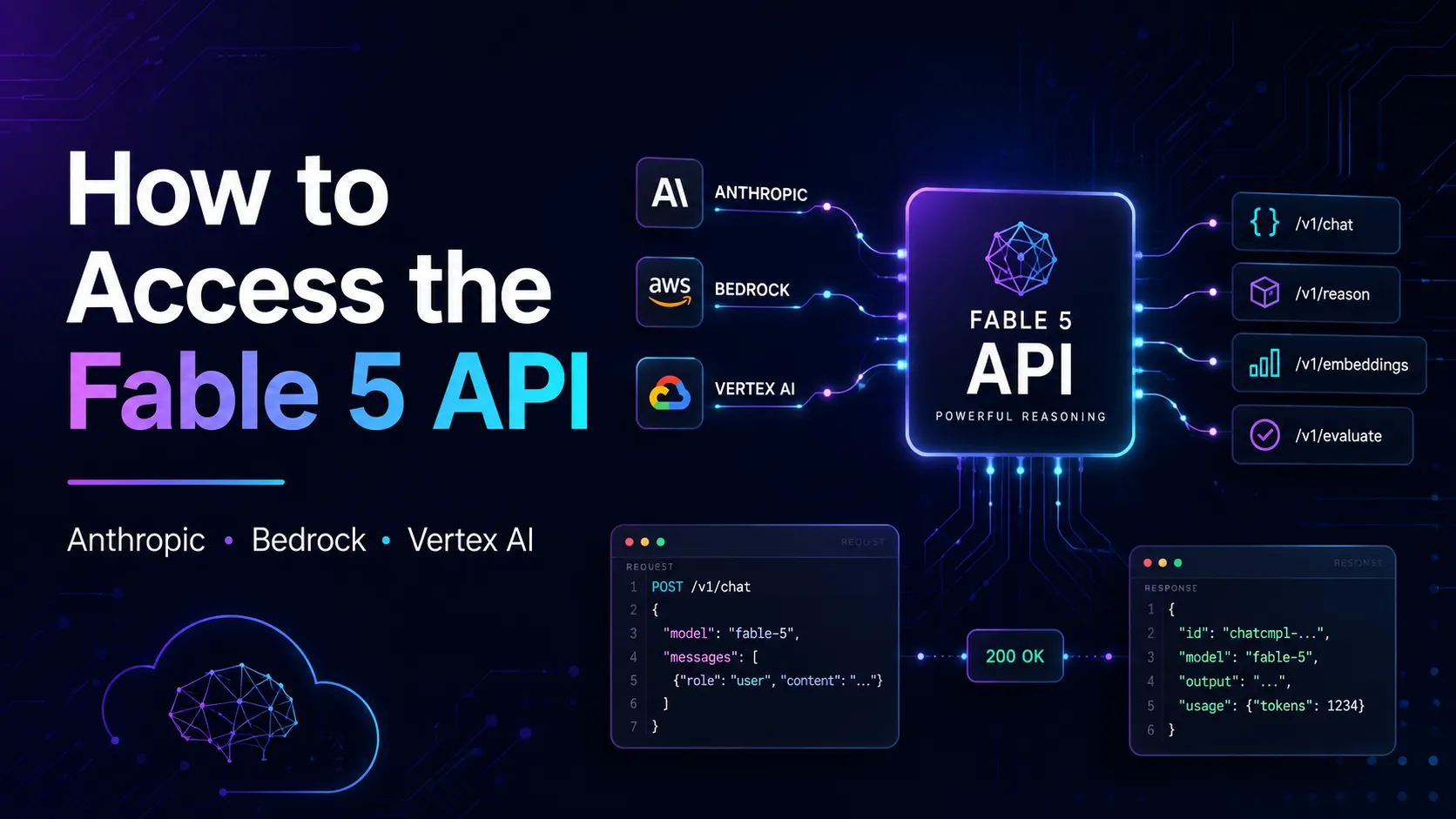
If you use Bedrock, Vertex AI, Foundry, or an LLM gateway, you may need to pin the provider-specific Fable model through environment variables.
For Anthropic API:
bash export ANTHROPIC_MODEL=claude-fable-5 claude
For Bedrock-style configuration:
bash export ANTHROPIC_DEFAULT_FABLE_MODEL="anthropic.claude-fable-5" claude --model fable
For Vertex AI-style configuration:
bash export ANTHROPIC_DEFAULT_FABLE_MODEL="claude-fable-5" claude --model fable
For custom gateways, you can add a model option to the picker:
`bash export ANTHROPIC_CUSTOM_MODEL_OPTION="gateway/claude-fable-5" export ANTHROPIC_CUSTOM_MODEL_OPTION_NAME="Fable 5 via Gateway" export ANTHROPIC_CUSTOM_MODEL_OPTION_DESCRIPTION="Claude Fable 5 routed through internal gateway"
claude `
Then run:
text /model
Choose the custom model from the picker.
Step 13: Understand When to Use Fable 5
Fable 5 is not just “a bigger Sonnet.” It is usually better suited for long-running and complex coding work.
Use Fable 5 for:
- Large refactors.
- Multi-file migrations.
- Root-cause analysis.
- Architecture reviews.
- Complex debugging.
- Test strategy design.
- Long-context repository exploration.
Use Sonnet or another faster model for:
- Small edits.
- Simple file generation.
- Quick explanations.
- Minor bug fixes.
- Formatting changes.
For normal application development, this means you should use Fable 5 when you want autonomy, investigation, and sustained context—not just a quick answer.
Step 14: Verify the Change with a Simple Test
After switching, run a small diagnostic prompt:
text /status
Then ask:
`text Inspect this repository and tell me:
- What language and framework it uses.
- The main entry point.
- The test command.
- One safe first improvement you recommend. Do not edit files yet. `
Expected behavior:
`text
- Claude identifies the stack.
- Claude reads relevant files.
- Claude avoids editing until asked.
- Claude proposes a practical first step. `
If Claude immediately edits files when you asked it not to, review your permissions mode and project instructions.
Common Issues & Troubleshooting
Fable 5 does not appear in /model
Check your Claude Code version:
bash claude --version
If it is below v2.1.170, update:
bash claude update
Then restart Claude Code:
bash claude
If Fable 5 still does not appear, your account, organization, or provider may not have access yet.
/model fable says the model is unavailable
Possible causes:
- Your account or organization does not have Fable 5 access.
- Your provider has not enabled the model.
- A managed team policy restricts available models.
- You are using a workspace setting that disables the model.
Check:
text /status
Then open the model picker:
text /model
If Fable 5 is disabled, ask your workspace admin or provider admin to confirm model access.
Claude Code keeps switching back to another model
A project, local, user, or managed setting may override your preferred model.
Check the likely configuration locations:
bash ls -la ~/.claude ls -la .claude
Look for settings files containing:
json { "model": "sonnet" }
Also check whether you launched with a command-line override:
bash claude --model sonnet
To force Fable 5 for the current launch, run:
bash claude --model fable
ANTHROPIC_MODEL=fable does not work
Confirm the variable is set in the same shell where you launch Claude Code:
bash echo $ANTHROPIC_MODEL
Expected output:
text fable
If it is empty, export it again:
bash export ANTHROPIC_MODEL=fable claude
If you use a GUI terminal, IDE terminal, tmux, or shell plugin manager, restart that environment after changing ~/.zshrc or ~/.bashrc.
Resumed sessions use the old model
If you resume a previous session, Claude Code may keep the model stored with that transcript.
Start a fresh session instead:
bash claude --model fable
Or switch after resuming:
text /model fable
Fable 5 falls back to another model
This can happen if Fable 5 is temporarily unavailable, overloaded, restricted by policy, or unsupported by the selected provider.
For reliability, use explicit fallback models:
bash claude --model fable --fallback-model opus,sonnet
You can also make fallback behavior persistent:
json { "model": "fable", "fallbackModel": ["opus", "sonnet"] }
The model picker shows provider IDs instead of friendly names
If you use Bedrock, Vertex AI, Foundry, or a gateway, set display metadata:
bash export ANTHROPIC_DEFAULT_FABLE_MODEL="claude-fable-5" export ANTHROPIC_DEFAULT_FABLE_MODEL_NAME="Claude Fable 5" export ANTHROPIC_DEFAULT_FABLE_MODEL_DESCRIPTION="Best for long-horizon coding and complex reasoning"
Then restart Claude Code:
bash claude
Costs are higher than expected
Fable 5 may be more expensive than faster daily-use models. Use it selectively for complex work.
A practical workflow is:
text /model fable
Use Fable 5 for planning, architecture, investigation, or large refactors.
text /model sonnet
Use Sonnet for quick implementation passes and small bug fixes.
Next Steps
Once Fable 5 is working in Claude Code, build a repeatable workflow:
- Use
/model fablefor long refactors, debugging sessions, architecture decisions, and multi-file migrations. - Use
/statusbefore major work to confirm the active model. - Add a project-level
.claude/configuration only when the whole team should use the same model. - Use fallback models for reliability in longer sessions.
- Keep Sonnet or Opus available for smaller tasks or when Fable 5 is unavailable.
A strong starting prompt for Fable 5 is:
`text You are working in this repository as a senior engineer.
Goal: <describe the final outcome>
Constraints:
- Inspect before editing.
- Explain the plan first.
- Make small, reviewable changes.
- Run relevant tests.
- Stop and ask before destructive commands.
Begin by mapping the project structure and identifying the safest implementation path. `
That prompt plays to Fable 5’s strengths: investigation, planning, long-context reasoning, and careful execution.
Continue Reading
More articles connected to the same themes, protocols, and tools.


Referenced Tools
Browse entries that are adjacent to the topics covered in this article.

Hyper3D MCP
MCP ServersHyper3D MCP is Hyper3D's hosted Rodin MCP server for creating 3D assets from natural-language instructions or supported references, checking asynchronous generation progress, and retrieving model download links inside AI coding clients. Official setup is documented for Codex, Claude Code, and Kimi Code CLI.

PaidSync.ai
MCP ServersPaidSync.ai is a hosted MCP server for paid advertising that exposes 610+ tools across 14 advertising, analytics, tagging, and commerce platforms. It supports read/write workflows from AI clients including ChatGPT, Claude, Gemini, Cursor, Claude Code, and Codex, with a free plan.