Claude Desktop
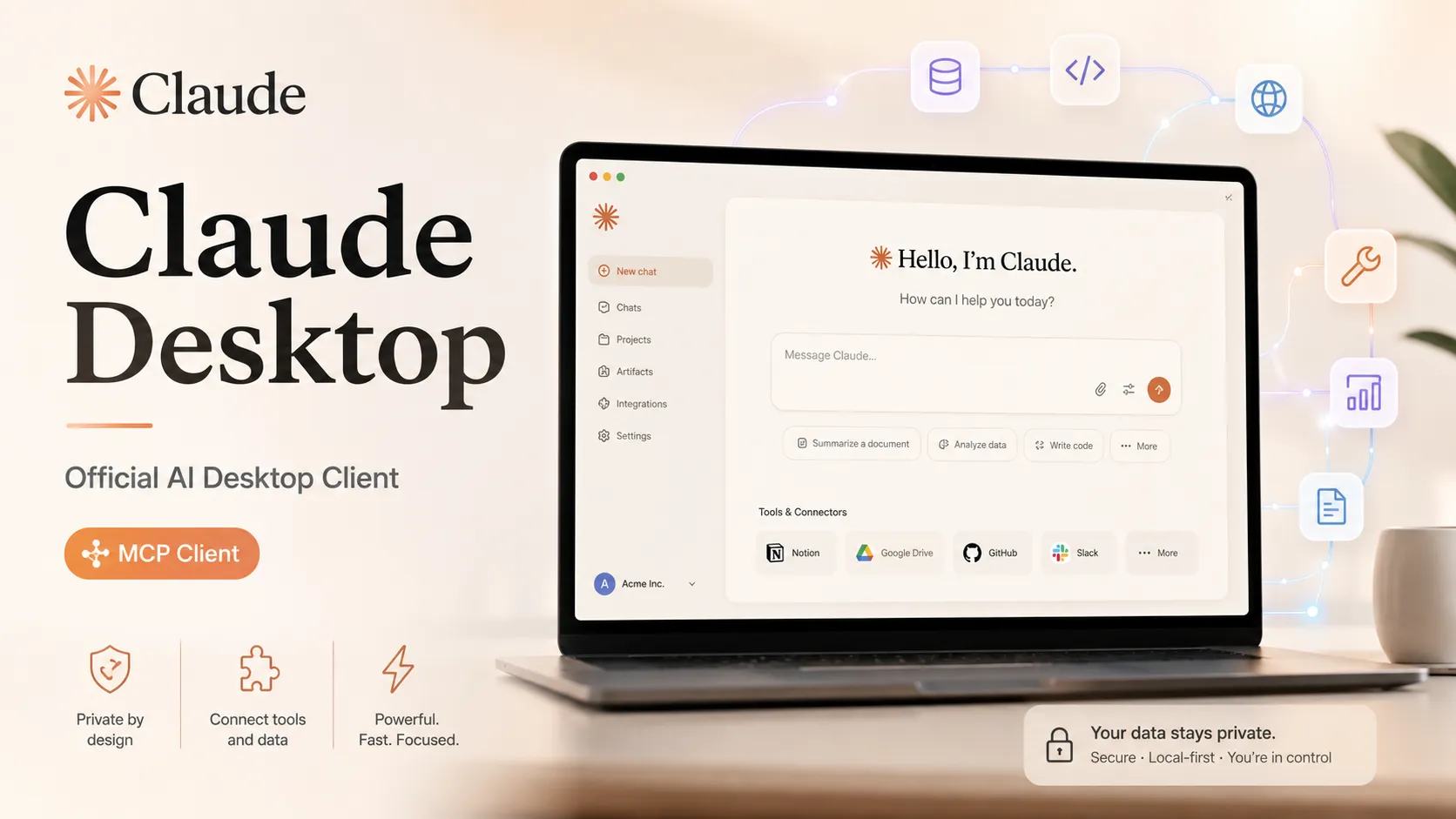
Claude Desktop is Anthropic’s official native desktop app for macOS and Windows, delivering full Claude AI with Chat, Cowork agentic tasks, Code capabilities, desktop extensions for local MCP servers, and connectors for external tools.
Overview
Claude Desktop is Anthropic’s official desktop application for using Claude from a native app experience. It is available from the official Claude download page and is designed for users who want quick desktop access to Claude without relying only on a browser.
Claude Desktop supports connectors and desktop extensions, enabling integration with external tools, services, local applications, and MCP-compatible systems.
Key Features
- Native Claude app experience for desktop users.
- Official download options for macOS, Windows, and Windows arm64.
- Supports Claude conversations, projects, memory, and preferences with cross-device sync when signed in.
- Desktop extensions for local MCP-style workflows and access to local files, browsers, and native applications.
- Connectors for external apps, services, and custom remote MCP servers.
- Claude Code tab: preview running servers, review local code changes, and monitor pull request status.
- Claude Cowork for agentic multi-step tasks.
- Quick entry for instant access from anywhere in your system.
MCP and Connector Support
Claude Desktop supports local MCP servers through desktop extensions (.mcpb packages) and remote MCP through connectors.
Desktop extensions provide a streamlined way to install and manage local MCP servers via single-click installable packages instead of manual JSON configuration.
Connectors allow Claude to access external apps, services, and custom remote MCP servers according to the user’s permissions.
Platform Support
The official Claude download page documents the following platform options:
| Platform | Status |
|---|---|
| macOS | Documented |
| Windows | Documented |
| Windows arm64 | Documented |
| Linux | Not available |
| ChromeOS | Not documented |
| iOS | Separate mobile app |
| Android | Separate mobile app |
Pricing and Account Requirements
Claude Desktop is available to users across all Claude plan types (Free, Pro, Max, Team, and Enterprise). Some features (including certain Cowork, Code, and extension capabilities) may require a paid plan or depend on account eligibility and organization policy.
Common Use Cases
- Using Claude from a native desktop app with quick system access.
- Connecting Claude to local tools and files via desktop extensions.
- Managing MCP-based integrations and connectors directly in the app.
- Running Claude-assisted writing, coding, research, and agentic workflows with Cowork and Code.
Security and Permissions
Connector and extension access follows the user’s permissions in the connected service or local system. Team and Enterprise administrators have additional controls for managing desktop extensions and connectors.
Claude Desktop vs Browser Claude
The browser version is convenient for general access. Claude Desktop provides a native workflow, quick entry, and support for desktop-specific integrations such as local MCP extensions.
Official Resources
- Official Claude download page: https://claude.com/download
- Getting Started with Local MCP Servers on Claude Desktop: https://support.claude.com/en/articles/10949351-getting-started-with-local-mcp-servers-on-claude-desktop
- Use Connectors to Extend Claude’s Capabilities: https://support.claude.com/en/articles/11176164-use-connectors-to-extend-claude-s-capabilities
- Claude Desktop and Claude Code quickstart: https://code.claude.com/docs/en/desktop-quickstart
- Claude release notes: https://support.claude.com/en/articles/12138966-release-notes
MCP Setup
Prerequisites
- Anthropic account required to sign in.
- Claude Desktop must be installed from the official download page.
- Claude apps are available to Free, Pro, Max, Team, and Enterprise plans.
- Some features may require a paid plan.
- Latest version of Claude Desktop required for desktop extensions.
Access requirements
- Sign in with an Anthropic account after launching Claude Desktop.
- Connector access follows the user’s permissions in the connected service.
- Desktop extension access may depend on user plan and organization policy.
- Team and Enterprise administrators may control public or custom desktop extensions.
Client setup
Claude Desktop
Transport: Not documented
- Download Claude Desktop from https://claude.com/download.
- Run the installer for macOS, Windows, or Windows arm64.
- Launch Claude Desktop.
- Sign in with an Anthropic account.
Auth:
- Sign in with an Anthropic account in the desktop app.
Linux is not available. No ChromeOS support is documented.
Claude Desktop - Desktop Extensions Directory
Transport: Not documented
- Open Claude Desktop.
- Go to Settings > Extensions.
- Click “Browse extensions” to view the directory.
- Click "Install" on the desired Anthropic-reviewed extension.
- Configure any required settings through the interface.
Auth:
- Provide required credentials or API keys only if the extension asks for them.
Desktop extensions simplify local MCP server installation. Extensions become available automatically in conversations.
Claude Desktop - Custom Desktop Extension
Transport: Not documented
- Open Claude Desktop.
- Go to Settings > Extensions.
- Click “Advanced settings” and find the Extension Developer section.
- Click “Install Extension…” and select the .mcpb file.
- Follow the prompts to install and configure.
Auth:
- Configure credentials or API keys only if required by the extension.
Custom .mcpb packages for privately distributed local MCP extensions. Team/Enterprise can upload custom extensions.
Claude Desktop - Connectors Directory
Transport: Not documented
- Open Claude Desktop.
- Open the connectors menu from the chat interface or Customize > Connectors.
- Browse available connectors.
- Select a connector and click “Connect” or “Install”.
Auth:
- Complete the connector-specific authorization flow and approve requested permissions.
Connector setup and authorization vary by connector.
Claude Desktop - Custom Remote MCP Connector
Transport: Remote MCP
- Open Claude Desktop.
- Go to Customize > Connectors.
- Click the “+” button next to Connectors and select “Add custom connector.”
- Enter the connector name and URL (plus OAuth details if required).
- Click “Add” and complete the connection flow.
Auth:
- Complete OAuth or connector-specific authorization if required by the remote MCP server.
Custom remote MCP connectors run from Anthropic’s cloud. The server must be reachable over the public internet.
Authorization flow
- Install and launch Claude Desktop from the official download page.
- Sign in with an Anthropic account.
- For desktop extensions: install via Settings > Extensions and configure any required credentials.
- For connectors: open Customize > Connectors, add from directory or custom, and complete authorization.
Setup docs: https://support.claude.com/en/articles/10949351-getting-started-with-local-mcp-servers-on-claude-desktop
Tags
Related Entries
Keep exploring similar tools and resources in this category.


Related Reads
Background, tutorials, and protocol context connected to this entry.