How to Fix Claude Cowork Dispatch Pairing Failed: Complete Step-by-Step Guide

Prerequisites
Before fixing the "Pairing Failed" error in Claude Cowork Dispatch, ensure you have these ready:
- Claude Pro or Max subscription (Dispatch is unavailable on free plans — check at claude.ai/settings)
- Latest Claude Desktop app installed and running on macOS (Sonoma+) or Windows (x64)
- Latest Claude mobile app on iOS or Android
- Both devices signed into the exact same Claude account
- Stable internet on both devices (same Wi-Fi/LAN strongly recommended)
- Claude Desktop app open with your computer awake and not sleeping
Note: Dispatch is a research preview feature inside the Cowork section. It lets you send tasks from your phone to your desktop Claude session.
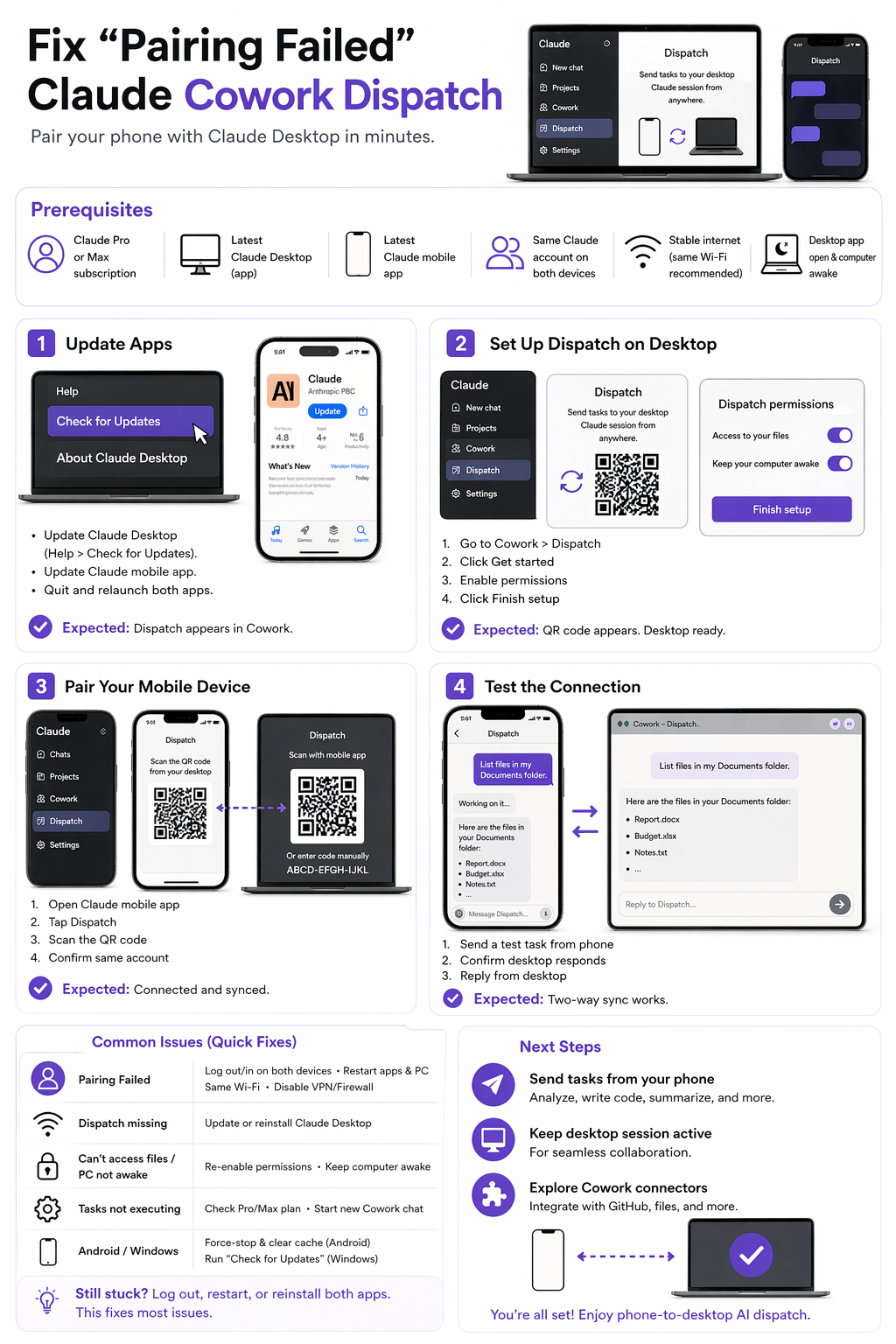
Step 1: Update Claude Desktop and Mobile Apps
Outdated apps are the #1 cause of pairing failures.
- On your computer, open Claude Desktop.
- Go to Help > Check for Updates (or download fresh from claude.com/download).
- On your phone, open the App Store or Google Play and update the Claude app.
- Fully quit both apps (Cmd+Q on Mac, force-close on phone) and relaunch.
Expected result: Dispatch option appears in the Cowork sidebar on desktop.
Step 2: Set Up Dispatch on Claude Desktop
This initializes the desktop side of the pairing.
- Open Claude Desktop and navigate to the Cowork section in the left sidebar.
- Click Dispatch (if missing, restart the app or check for updates again).
- Click Get started on the feature description page.
- On the permissions screen, toggle ON:
- Access to your files
- Keep your computer awake
- Click Finish setup.
Expected result: A QR code or sync confirmation appears. Your desktop session is now ready for mobile pairing.
Step 3: Pair Your Mobile Device
- Open the Claude mobile app on your phone.
- In the sidebar, tap the new Dispatch entry (it auto-appears after desktop setup).
- If prompted, scan the QR code shown on your desktop screen.
- Confirm you're signed into the same account.
Expected result: The mobile app connects and shows a continuous Dispatch chat synced with your desktop Cowork session. You can now send tasks from anywhere.
Step 4: Test the Connection
- From your phone, type a simple test task in the Dispatch chat (e.g., "List files in my Documents folder").
- Watch the desktop Claude respond and execute.
- Reply from desktop to confirm two-way sync.
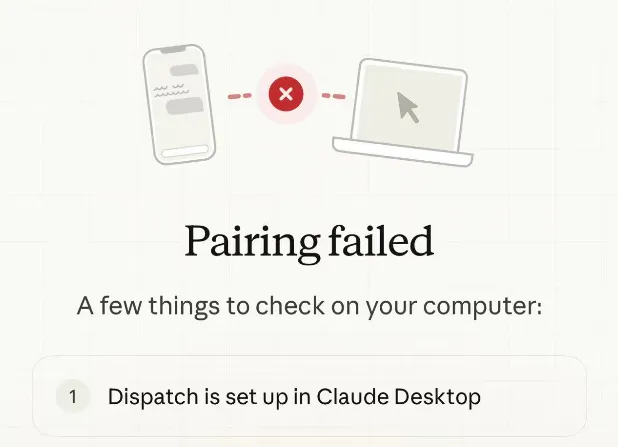
If the pairing still shows "Pairing Failed. Both devices on the same LAN, same account logged in," proceed to troubleshooting.
Common Issues & Troubleshooting
Pairing Failed error persists (even when on same LAN/same account):
- Log out and log back in on both devices: Go to account settings in each app, sign out completely, then sign back in. This resolves 80% of sync issues.
- Restart everything: Fully quit Claude Desktop (Cmd+Q), restart your computer, and force-close/reopen the mobile app.
- Check Dispatch visibility on desktop: If the button is missing, reinstall Claude Desktop (not just update).
- Network fixes: Disable VPNs, switch to the same Wi-Fi network, or temporarily turn off firewall/antivirus on your computer.
- Permissions reset: In desktop Dispatch setup, re-toggle file access and keep-awake options.
Dispatch connects but tasks don't execute:
- Ensure desktop computer stays awake (toggle was enabled in Step 2).
- Start a fresh Cowork chat on desktop after pairing.
- Verify Pro/Max subscription is active.
Android-specific (e.g., Pixel phones): Some users report extra latency — force-stop the app in phone settings and clear cache before retrying.
Windows-specific: Run "Check for Updates" 2–3 times and restart your PC if the workspace fails to initialize.
Still stuck? Start a new chat in Dispatch or reinstall both apps as a last resort. No support email needed — most issues resolve with logout + restart.
Next Steps
Once pairing works:
- Send complex tasks from your phone (e.g., "Analyze this spreadsheet and summarize trends").
- Keep your desktop Claude session active for continuous collaboration.
- Explore Cowork connectors for deeper integrations (GitHub, files, etc.).
You now have full phone-to-desktop AI dispatch. Test with simple tasks first to build confidence, then scale up.
Continue Reading
More articles connected to the same themes, protocols, and tools.


Referenced Tools
Browse entries that are adjacent to the topics covered in this article.

Hyper3D MCP
MCP ServersHyper3D MCP is Hyper3D's hosted Rodin MCP server for creating 3D assets from natural-language instructions or supported references, checking asynchronous generation progress, and retrieving model download links inside AI coding clients. Official setup is documented for Codex, Claude Code, and Kimi Code CLI.